
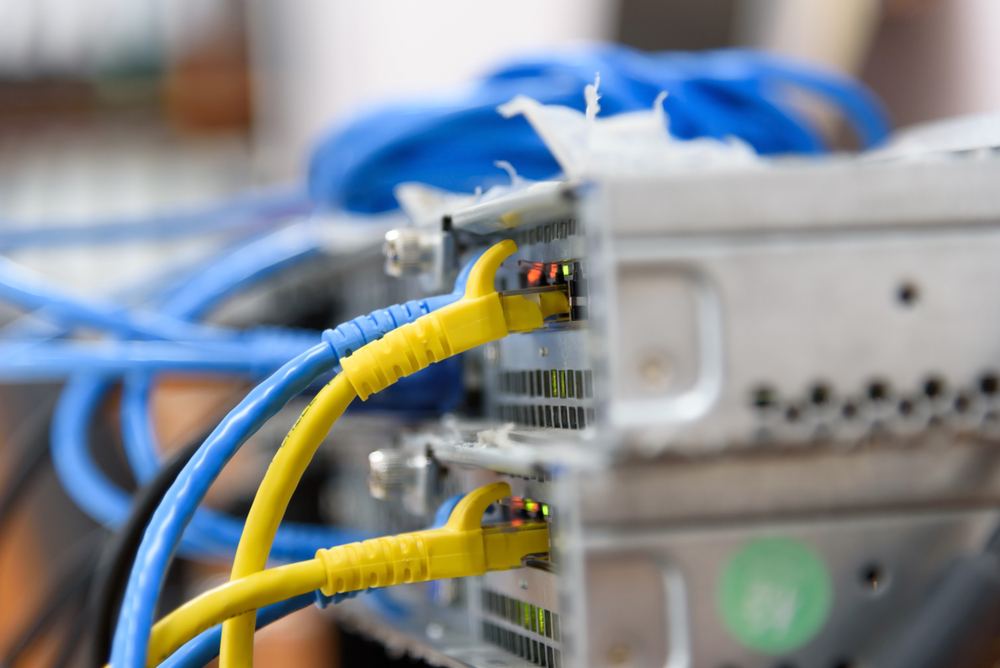
How to Set Up a Wireless Network with Ethernet: Components, Costs, and Configuration
Table of Contents
- Introduction
- Physical Router Setup
- Required Components and Costs
- Ethernet Cable Types and Speeds
- Power over Ethernet (PoE)
- Wireless Standards
- Configuration Steps
- Security Settings
- Total Cost Scenarios
- Key Design Best Practices
- Additional Considerations
- Conclusion
- FAQs
Introduction
Setting up a wireless network with Ethernet gives you the speed of a wired connection and the flexibility of Wi-Fi at the same time. Wired Ethernet connections are faster and more stable, while Wi-Fi allows devices to move freely. Most modern networks use both together, connecting routers and access points through Ethernet cables while letting phones, laptops, and smart devices connect wirelessly. This guide covers everything you need to configure a wireless network with Ethernet correctly, from hardware to costs.
Physical Router Setup
Before touching any settings, you need to get the hardware connected in the right order.
- Plug an Ethernet cable into the WAN or Ethernet port on your modem
- Connect the other end to the WAN port (often blue) on your wireless router
- Power on the modem first and wait for its indicator lights to stabilize
- Then power on the router
Once both devices are running, you can access the router's settings through a browser.
For more information, visit: Ethernet and wireless network configuration services
Required Components and Costs
Every wireless network with Ethernet needs specific hardware. Here is what each component does and what it typically costs:
|
Component |
Purpose |
Typical Cost |
|
Wireless Access Points (APs) |
Create Wi-Fi coverage zones |
$125–$300 per Wi-Fi 6 AP |
|
Wireless Router / Gateway |
Routes traffic, assigns IPs, provides firewall |
$50–$500 |
|
Ethernet Cables (Cat5e–Cat8) |
Connects APs, switches, and routers |
$0.20–$3.00 per foot |
|
Network Switch (with PoE) |
Powers and connects APs and wired devices |
$20–$2,500 |
|
Modem |
Converts ISP signal to Ethernet |
$60–$250 |
|
Network Interface Cards (NICs) |
Connects each device to the network |
Built-in or $10–$60 USB |
|
Patch Panel and Wall Jacks |
Terminates Ethernet runs cleanly |
$100–$280 |
|
Security Hardware / Firewall |
Protects against threats |
$1,000–$2,500 |
|
UPS (Backup Power) |
Keeps network running during outages |
$300–$1,500 |
|
Network Management Software |
Monitors performance and devices |
$300–$1,200/year |
Ethernet Cable Types and Speeds
The cable you choose affects your network's maximum speed and future-readiness.
|
Cable Type |
Max Speed |
Bandwidth |
Cost per Foot |
Best For |
|
Cat5e |
1 Gbps |
100 MHz |
$0.25 |
Basic home use |
|
Cat6 |
1 Gbps (10G up to 55m) |
250 MHz |
$0.30 |
Standard home/business |
|
Cat6a |
10 Gbps at 100m |
500 MHz |
$0.35 |
Wi-Fi 6 and 6E APs |
|
Cat7 |
10 Gbps |
600 MHz+ |
$0.35 |
High-interference areas |
|
Cat8 |
40 Gbps at 30m |
2,000 MHz |
$0.45 |
Data centers, short runs |
|
Fiber Optic |
Up to 100 Gbps |
Very high |
$3.00+ |
Long distances, high security |
Installation cost example for a 2,000 ft run:
- Cat6: $1,800–$3,100
- Cat6a: $2,600–$4,000
- Fiber: $3,200–$12,000
For copper cables, oxygen-free copper performs better than copper-clad aluminum, which has more signal loss over distance.
Power over Ethernet (PoE)
Wi-Fi access points are typically powered through the same Ethernet cable that carries data, so you do not need a separate power outlet at each AP location.
|
PoE Standard |
IEEE |
Max Power per Port |
Typical Use |
|
PoE |
802.3af |
15.4W |
Basic APs |
|
PoE+ |
802.3at |
30W |
Most Wi-Fi 6 APs |
|
PoE++ |
802.3bt |
60W / 90W |
High-power APs, cameras |
Your switch must match or exceed the PoE requirement of your access points. For Wi-Fi 6, 6E, or 7 APs, a multi-gig switch with PoE+ is the right choice.
Wireless Standards
Choosing the right Wi-Fi standard determines how fast and future-proof your network will be.
|
Wi-Fi Standard |
IEEE |
Max Speed |
Frequency Bands |
Key Requirements |
|
Wi-Fi 5 |
802.11ac |
~1.3 Gbps |
5 GHz |
Basic modern networks |
|
Wi-Fi 6 |
802.11ax |
~9.6 Gbps |
2.4 / 5 GHz |
Cat6a, PoE+ switch, WPA3 |
|
Wi-Fi 6E |
802.11ax |
~9.6 Gbps |
2.4 / 5 / 6 GHz |
6 GHz APs, WPA3 mandatory |
|
Wi-Fi 7 |
802.11be |
~46 Gbps |
2.4 / 5 / 6 GHz |
Multi-gig ports, Cat6a+ |
WPA3 has been mandatory for all Wi-Fi CERTIFIED devices since July 2020 and is required for Wi-Fi 6E and 7. It uses SAE authentication, AES-GCM-256 encryption, and forward secrecy.
Configuration Steps
Setting up a wireless network with Ethernet involves five core stages:
1. Gather Requirements
Define the number of devices, required speeds, coverage area, and security level. Account for IoT devices and guest access from the start.
2. Design and Survey
Get floor plans and note physical barriers like walls, metal racks, and staircases. Run a wireless site survey, either a predictive model using software or an on-site RF measurement. Use heatmaps to identify weak signal areas before installing anything.
3. Install WLAN Components
Install access points, switches, routers, and cabling. During configuration:
- Use channels 1, 6, or 11 in the 2.4 GHz band
- Keep channel width at 20 MHz in 2.4 GHz to avoid interference
- In 5 GHz, avoid 80 or 160 MHz channel widths unless you have only one AP
- Avoid DFS channels unless you are experienced with them
- Do not set AP transmit power too high; it causes more problems than it solves
4. Integrate with Network Infrastructure
Configure DHCP for IP assignment, DNS, and firewall rules. Open required ports:
- DHCP: 67/UDP (server), 68/UDP (client)
- DNS: 53/TCP and UDP
- NTP: 123/UDP
Set up VLANs to separate IoT devices, guest users, and staff.
5. Test and Validate
Test signal coverage and performance with real devices before going live. Confirm all security configurations, including WPA3 and guest network isolation, are working correctly. Adjust AP placement or transmit power if needed.
Security Settings
Security should be configured during setup, not added as an afterthought.
|
Security Setting |
Requirement |
|
Encryption |
WPA3 for Wi-Fi 6E/7; WPA2 for older devices |
|
Authentication |
SAE (Simultaneous Authentication of Equals) for WPA3 |
|
Firewall |
Hardware firewall; $1,500–$4,000 for small business |
|
Guest Network |
Separate SSID to isolate visitor traffic |
|
Firmware Updates |
Regular updates for APs, routers, and switches |
|
Network Segmentation |
VLANs for IoT, staff, and guests |
|
Passwords |
Unique, complex pre-shared keys for each network |
Total Cost Scenarios
Small Home Network (5 devices, 1–2 APs)
|
Item |
Cost |
|
Router |
$50–$200 |
|
Modem |
$60–$150 |
|
1–2 Wi-Fi 6 APs |
$125–$300 |
|
Cat6 cable (100–200 ft) |
$30–$60 |
|
8-port basic switch |
$20–$100 |
|
Installed ports (2–4) |
$150–$500 |
|
Total DIY |
$400–$900 |
|
Total Professional |
$600–$1,200 |
Small Business (10–50 employees, 2–4 APs)
|
Category |
Cost |
|
Hardware (routers, switches, APs) |
$2,000–$5,000 |
|
Structured cabling (Cat6a) |
$2,500–$6,000 |
|
Professional labor and configuration |
$1,500–$3,000 |
|
Security (firewall and software) |
$1,000–$2,500 |
|
Total |
$5,000–$15,000 |
|
Annual maintenance and support |
$1,500–$4,000/year |
Larger enterprise or multi-location deployments can exceed $20,000 depending on complexity and security requirements.
Key Design Best Practices
- Use Cat6a minimum for Wi-Fi 6 and 6E access points
- Never exceed 20 MHz channel width in the 2.4 GHz band
- Build overlap between access points to support seamless roaming
- Match PoE switch budget to the exact power draw of your APs
- Enable WPA3 on all new installations
- Set up a separate guest SSID on its own VLAN
- Keep AP transmit power at moderate levels; higher is not always better
- Run a post-installation validation before declaring the network live
Additional Considerations
Regulatory and Compliance Requirements
Cabling and conduit installations must meet local electrical codes. Permits may be required for large installations. If your environment is subject to specific regulations:
- HIPAA (healthcare): add $3,000–$5,000
- PCI-DSS (payment processing): add $2,000–$4,000
What Impacts Cost and Performance Most
- Cable type: Cat6a supports 10 Gbps vs 1 Gbps for Cat5e
- Existing buildings cost 25–40% more to wire than new construction
- Building materials like concrete and metal significantly weaken Wi-Fi signals
- More concurrent devices require more access points
- The distance between an AP and its switch is limited to 100m for Ethernet; longer runs need fiber
Professional Installation Labor Costs
|
Service |
Cost Range |
|
Home Ethernet installation (1–8 ports) |
$186–$676 |
|
Labor rate per hour |
$50–$150 |
|
Large project (2,000 ft, 8 ports) |
$2,500–$5,200 |
|
Retrofit existing building |
Add $2,500–$3,500 |
|
Per port / jack installation |
$75–$250 |
|
AP installation with cable pull |
~$458 per AP |
|
Professional network design |
$500–$5,000 |
Need help organizing your network? Our network configuration and installation guide breaks down the important steps
Conclusion
Weak signals and unreliable Wi-Fi can make everyday tasks frustrating. RMS Installs helps homeowners and businesses build smarter network systems with the right combination of wireless coverage and hardwired connections. If you are ready to get started or have questions about your specific setup, contact us at (470) 456-3108.
FAQs
What is the minimum cable type recommended for a wireless network with Ethernet?
Cat6 is the minimum for most home and business networks. If you are installing Wi-Fi 6 or 6E access points, Cat6a is strongly recommended because it supports 10 Gbps over 100 meters.
Do I need a PoE switch to run wireless access points?
Yes, in most cases. Wi-Fi access points are powered through the Ethernet cable using Power over Ethernet. You need a PoE or PoE+ switch that matches the power requirement of your APs. Wi-Fi 6 APs typically require PoE+ at 30W per port.
How many access points do I need for my home or office?
It depends on the size of the space, the building materials, and the number of devices. A small home usually needs one to two APs. A business with 10 to 50 employees in a standard office typically needs two to four APs placed to provide overlapping coverage.
What is the difference between a router and a wireless access point?
A router directs traffic between your local network and the internet and assigns IP addresses. A wireless access point creates a Wi-Fi zone and connects wireless devices to your wired network. Many home routers combine both functions in one unit.
Is WPA3 required for new wireless network installations?
WPA3 has been mandatory for all Wi-Fi CERTIFIED devices since July 2020. If you are deploying Wi-Fi 6E or Wi-Fi 7, WPA3 is required. For older devices still using WPA2, most modern routers support both in a mixed mode.
How much does it cost to professionally install a wireless network with Ethernet?
A small home network installation typically runs $600 to $1,200 when done professionally. A small business network with structured cabling, access points, and security hardware usually costs $5,000 to $15,000 in total, with annual maintenance running $1,500 to $4,000.
What ports need to be open for a standard wireless network to function?
At minimum, DHCP requires UDP ports 67 and 68, DNS requires port 53 on both TCP and UDP, and NTP requires UDP port 123. Additional ports may be needed depending on specific applications or security appliances.
Can I mix wired and wireless devices on the same network?
Yes, and most networks are designed this way. Stationary devices like desktops and gaming consoles connect via Ethernet directly to LAN ports on the router or switch. Mobile devices connect over Wi-Fi. Both share the same network and internet connection.
What is a VLAN and why should I use one?
A VLAN (Virtual Local Area Network) separates devices into isolated groups on the same physical network. You can use VLANs to keep IoT devices, guest users, and staff on separate segments, which improves security and reduces the risk of one compromised device affecting others.
How far can an Ethernet cable run before it needs a switch or fiber?
Standard Ethernet cables have a maximum effective distance of 100 meters (about 328 feet). Beyond that, you need either an additional switch to extend the run or fiber optic cable, which can carry signals over much longer distances.
Certified partners






Click Here to Fill The Form Online or Call us at:

| Monday | 08:00 AM - 06:00 PM |
| Tuesday | 08:00 AM - 06:00 PM |
| Wednesday | 08:00 AM - 06:00 PM |
| Thursday | 08:00 AM - 06:00 PM |
| Friday | 08:00 AM - 06:00 PM |
| Saturday | 10:00 AM - 05:00 PM |
| Sunday | (Closed) |